> ## Documentation Index
> Fetch the complete documentation index at: https://docs.flipsidecrypto.com/llms.txt
> Use this file to discover all available pages before exploring further.
# Queries
> Write, manage, and share SQL queries against Flipside's blockchain data
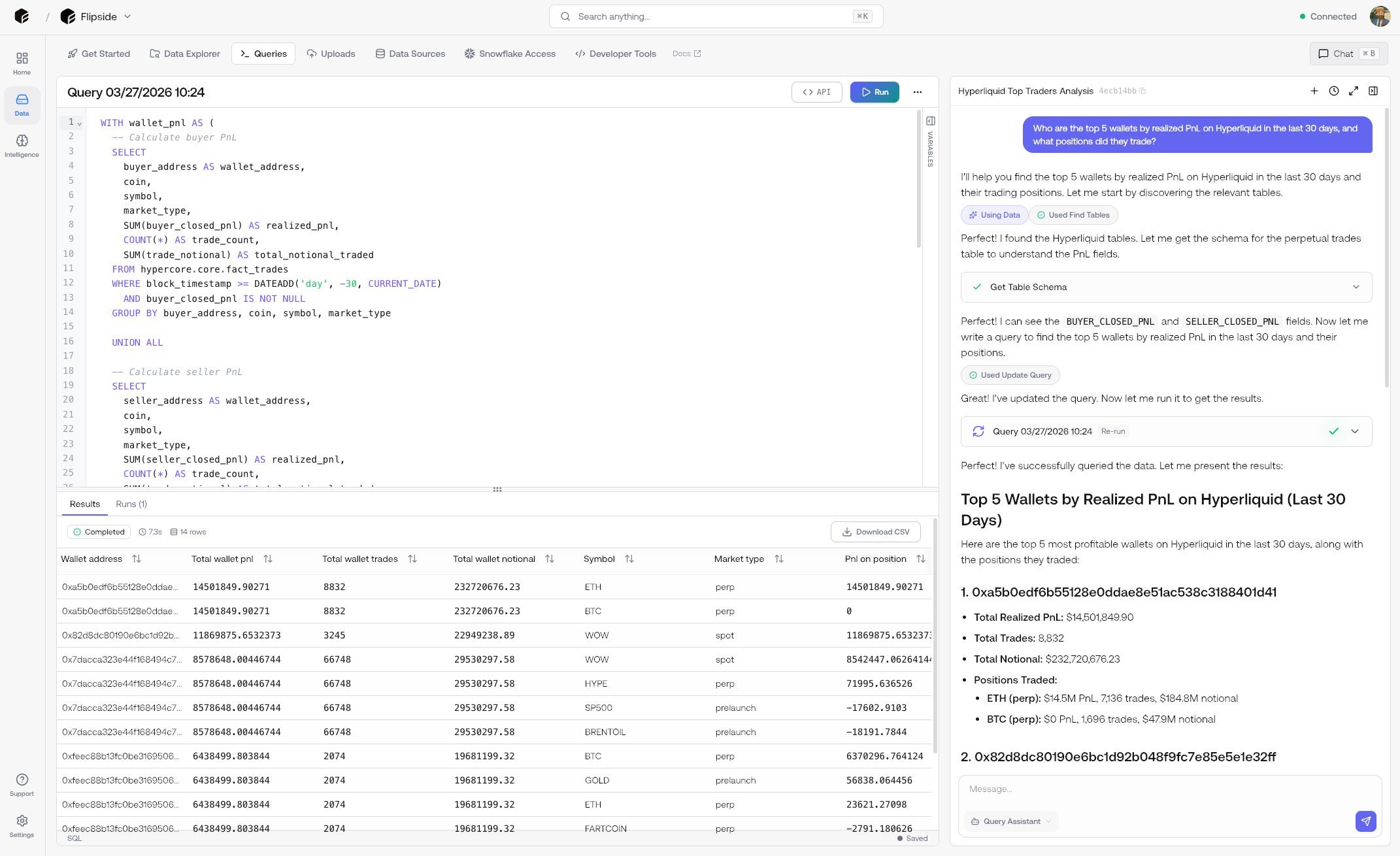
Flipspace provides direct SQL access to Flipside's complete data catalog. Query any table, join
across schemas, and export results — all with standard SQL. Queries are automatically saved as you
work.
## Creating Queries
Navigate to [Queries](https://app.flipsidecrypto.xyz/queries) and click **New Query** to open the
editor.
Add a **Query Name** and optional **Description** to help identify the query later.
Enter your SQL in the editor. Try this example to get started:
```sql theme={null}
SELECT
DATE_TRUNC('day', block_timestamp) AS date,
COUNT(*) AS swap_count,
SUM(amount_in_usd) AS volume_usd
FROM ethereum.defi.ez_dex_swaps
WHERE block_timestamp >= DATEADD(day, -7, CURRENT_DATE)
GROUP BY 1
ORDER BY 1
```
Click **Run** (or **Cmd+Enter**) to execute. Results appear below the editor with row count,
duration, and a **Download CSV** option. Your query is saved automatically.
Queries created by chat are also automatically saved and appear in your
[Queries dashboard](https://app.flipsidecrypto.xyz/queries).
## Query Assistant
Press **Cmd+B** to open the chat assistant directly in the query editor. The assistant has full
context of your current query and can write new queries, modify existing ones, explain results, or
help debug SQL errors.
## Managing Queries
Navigate to [Queries](https://app.flipsidecrypto.xyz/queries) to see all your queries. Each query
displays its name, last modified date, last run time, and author.
Click any query to open it in the editor. From there you can:
* **Run** the query to get fresh results
* **Edit** the SQL and it will save automatically
* **Duplicate** the query to create a copy
* **Delete** the query permanently
## Using Queries in Automations
Saved queries can be added to automations as Query blocks, letting you build repeatable workflows
that run on a schedule.
Build automated workflows with your saved queries
## Using Variables
Variables make your queries reusable by letting you change values without editing the SQL. Add
variables in the Variables panel on the right side of the editor.
### Variable Syntax
| Syntax | Use | Example |
| ---------------- | -------------------------------------- | -------------------------------------- |
| `{{variable}}` | For values (strings, numbers, dates) | `WHERE address = '{{wallet_address}}'` |
| `{{{variable}}}` | For identifiers (table names, columns) | `SELECT * FROM {{{table_name}}}` |
### Example with Variables
```sql theme={null}
SELECT
DATE_TRUNC('day', block_timestamp) AS date,
COUNT(*) AS tx_count,
SUM(amount_usd) AS volume_usd
FROM ethereum.core.ez_token_transfers
WHERE from_address = '{{wallet_address}}'
AND block_timestamp >= DATEADD(day, -{{days_back}}, CURRENT_DATE)
GROUP BY 1
ORDER BY 1
```
This query uses two variables:
* `wallet_address` — The wallet to analyze
* `days_back` — Number of days to look back
When you run the query, you'll be prompted to enter values for each variable.
## Autocomplete
The editor provides autocomplete suggestions as you type, including table names, column names, and
SQL keywords.
* **Tab** or **Enter** to accept the highlighted suggestion
* **Ctrl+N** to move down in the suggestion list
* **Ctrl+P** to move up in the suggestion list
* **Ctrl+Y** to select the current suggestion
## Keyboard Shortcuts
| Shortcut | Action |
| ------------- | -------------------------------- |
| **Cmd+Enter** | Run query |
| **Cmd+B** | Open / close chat assistant |
| **Tab** | Accept autocomplete suggestion |
| **Ctrl+N** | Next autocomplete suggestion |
| **Ctrl+P** | Previous autocomplete suggestion |
| **Ctrl+Y** | Select autocomplete suggestion |
## API Access
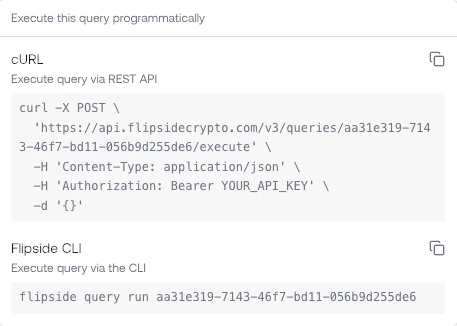
Click the **API** button in the top-right corner of any query to get ready-to-use code for executing
the query programmatically.
The panel provides:
* **cURL** — A complete `curl` command to execute the query via the REST API
* **Flipside CLI** — The `flipside query run` command with the query ID pre-filled
Both include the query's unique ID so you can integrate it directly into scripts, pipelines, or
applications. See the [API Reference](/api) for full documentation.
## Writing Queries
### Table References
Use the full table path: `{network}.{schema}.{table}`
```sql theme={null}
-- Ethereum DEX swaps
SELECT * FROM ethereum.defi.ez_dex_swaps LIMIT 10
-- Solana NFT sales
SELECT * FROM solana.nft.ez_nft_sales LIMIT 10
-- Cross-chain address labels
SELECT * FROM crosschain.core.address_labels WHERE address = '0x...'
```
### Recommended Tables
Start with `ez_*` (curated) tables for most analyses:
| Network | Common Tables |
| -------- | ----------------------------------------------------------------- |
| Ethereum | `ethereum.defi.ez_dex_swaps`, `ethereum.core.ez_token_transfers` |
| Solana | `solana.defi.ez_dex_swaps`, `solana.nft.ez_nft_sales` |
| Arbitrum | `arbitrum.defi.ez_dex_swaps`, `arbitrum.core.ez_native_transfers` |
### Query Optimization
Always include date filters to limit scan size:
```sql theme={null}
WHERE block_timestamp >= '2024-01-01'
AND block_timestamp < '2024-04-01'
```
Select only needed columns instead of `SELECT *`:
```sql theme={null}
SELECT block_timestamp, origin_from_address, amount_usd
FROM ethereum.defi.ez_dex_swaps
```
Add `LIMIT` during exploration:
```sql theme={null}
SELECT * FROM ethereum.defi.ez_dex_swaps
WHERE platform = 'uniswap-v3'
LIMIT 1000
```
For high-level metrics, use pre-aggregated tables:
```sql theme={null}
-- Faster than aggregating fact tables
SELECT * FROM solana.stats.ez_core_metrics_hourly
```
## Example Queries
### DEX Volume by Protocol
```sql theme={null}
SELECT
platform,
DATE_TRUNC('day', block_timestamp) AS date,
COUNT(*) AS swap_count,
SUM(amount_in_usd) AS volume_usd
FROM ethereum.defi.ez_dex_swaps
WHERE block_timestamp >= DATEADD(day, -30, CURRENT_DATE)
GROUP BY 1, 2
ORDER BY 2 DESC, 4 DESC
```
### Top Token Holders
```sql theme={null}
SELECT
user_address,
SUM(amount) AS total_balance
FROM ethereum.core.ez_token_transfers
WHERE contract_address = '0xA0b86991c6218b36c1d19D4a2e9Eb0cE3606eB48' -- USDC
AND block_timestamp >= DATEADD(day, -90, CURRENT_DATE)
GROUP BY 1
ORDER BY 2 DESC
LIMIT 100
```
### Cross-Chain Bridge Activity
```sql theme={null}
SELECT
destination_chain,
DATE_TRUNC('day', block_timestamp) AS date,
COUNT(DISTINCT sender) AS unique_bridgers,
SUM(amount_usd) AS volume_usd
FROM ethereum.defi.ez_bridge_activity
WHERE block_timestamp >= '2024-01-01'
GROUP BY 1, 2
ORDER BY 2, 4 DESC
```
## Next Steps
Download query results as CSV or JSON
Browse available tables and schemas
Complete table references
Ask the assistant to write or modify queries
 Flipspace provides direct SQL access to Flipside's complete data catalog. Query any table, join
across schemas, and export results — all with standard SQL. Queries are automatically saved as you
work.
## Creating Queries
Navigate to [Queries](https://app.flipsidecrypto.xyz/queries) and click **New Query** to open the
editor.
Flipspace provides direct SQL access to Flipside's complete data catalog. Query any table, join
across schemas, and export results — all with standard SQL. Queries are automatically saved as you
work.
## Creating Queries
Navigate to [Queries](https://app.flipsidecrypto.xyz/queries) and click **New Query** to open the
editor.
 The panel provides:
* **cURL** — A complete `curl` command to execute the query via the REST API
* **Flipside CLI** — The `flipside query run` command with the query ID pre-filled
Both include the query's unique ID so you can integrate it directly into scripts, pipelines, or
applications. See the [API Reference](/api) for full documentation.
## Writing Queries
### Table References
Use the full table path: `{network}.{schema}.{table}`
```sql theme={null}
-- Ethereum DEX swaps
SELECT * FROM ethereum.defi.ez_dex_swaps LIMIT 10
-- Solana NFT sales
SELECT * FROM solana.nft.ez_nft_sales LIMIT 10
-- Cross-chain address labels
SELECT * FROM crosschain.core.address_labels WHERE address = '0x...'
```
### Recommended Tables
Start with `ez_*` (curated) tables for most analyses:
| Network | Common Tables |
| -------- | ----------------------------------------------------------------- |
| Ethereum | `ethereum.defi.ez_dex_swaps`, `ethereum.core.ez_token_transfers` |
| Solana | `solana.defi.ez_dex_swaps`, `solana.nft.ez_nft_sales` |
| Arbitrum | `arbitrum.defi.ez_dex_swaps`, `arbitrum.core.ez_native_transfers` |
### Query Optimization
The panel provides:
* **cURL** — A complete `curl` command to execute the query via the REST API
* **Flipside CLI** — The `flipside query run` command with the query ID pre-filled
Both include the query's unique ID so you can integrate it directly into scripts, pipelines, or
applications. See the [API Reference](/api) for full documentation.
## Writing Queries
### Table References
Use the full table path: `{network}.{schema}.{table}`
```sql theme={null}
-- Ethereum DEX swaps
SELECT * FROM ethereum.defi.ez_dex_swaps LIMIT 10
-- Solana NFT sales
SELECT * FROM solana.nft.ez_nft_sales LIMIT 10
-- Cross-chain address labels
SELECT * FROM crosschain.core.address_labels WHERE address = '0x...'
```
### Recommended Tables
Start with `ez_*` (curated) tables for most analyses:
| Network | Common Tables |
| -------- | ----------------------------------------------------------------- |
| Ethereum | `ethereum.defi.ez_dex_swaps`, `ethereum.core.ez_token_transfers` |
| Solana | `solana.defi.ez_dex_swaps`, `solana.nft.ez_nft_sales` |
| Arbitrum | `arbitrum.defi.ez_dex_swaps`, `arbitrum.core.ez_native_transfers` |
### Query Optimization