

Chat Everywhere
Chat is always available and adapts to your context. Open it from any page and it understands what you’re working on — the query you’re editing, the automation you’re viewing, or the data you’re exploring. Conversations persist across sessions so you never lose your place.Write & Edit Queries
Ask chat to write SQL, modify your current query, explain results, or debug errors — all with
full context of what’s in your editor
Build Automations
Describe what you want to automate and chat will help you build and configure workflows
Analyze Data
Ask questions about any blockchain data and get answers backed by live queries across the full
data catalog
Context-Aware Agents
Agents automatically adapt based on what you’re looking at and the questions you ask, providing
specialized expertise when you need it
Opening Chat
Press Cmd+B from any view to open or close chat. You can also click the chat button in the top-right corner. Chat automatically picks up context from whatever you’re viewing — your current query, automation, data table, or report — so you can ask questions or give instructions without switching windows.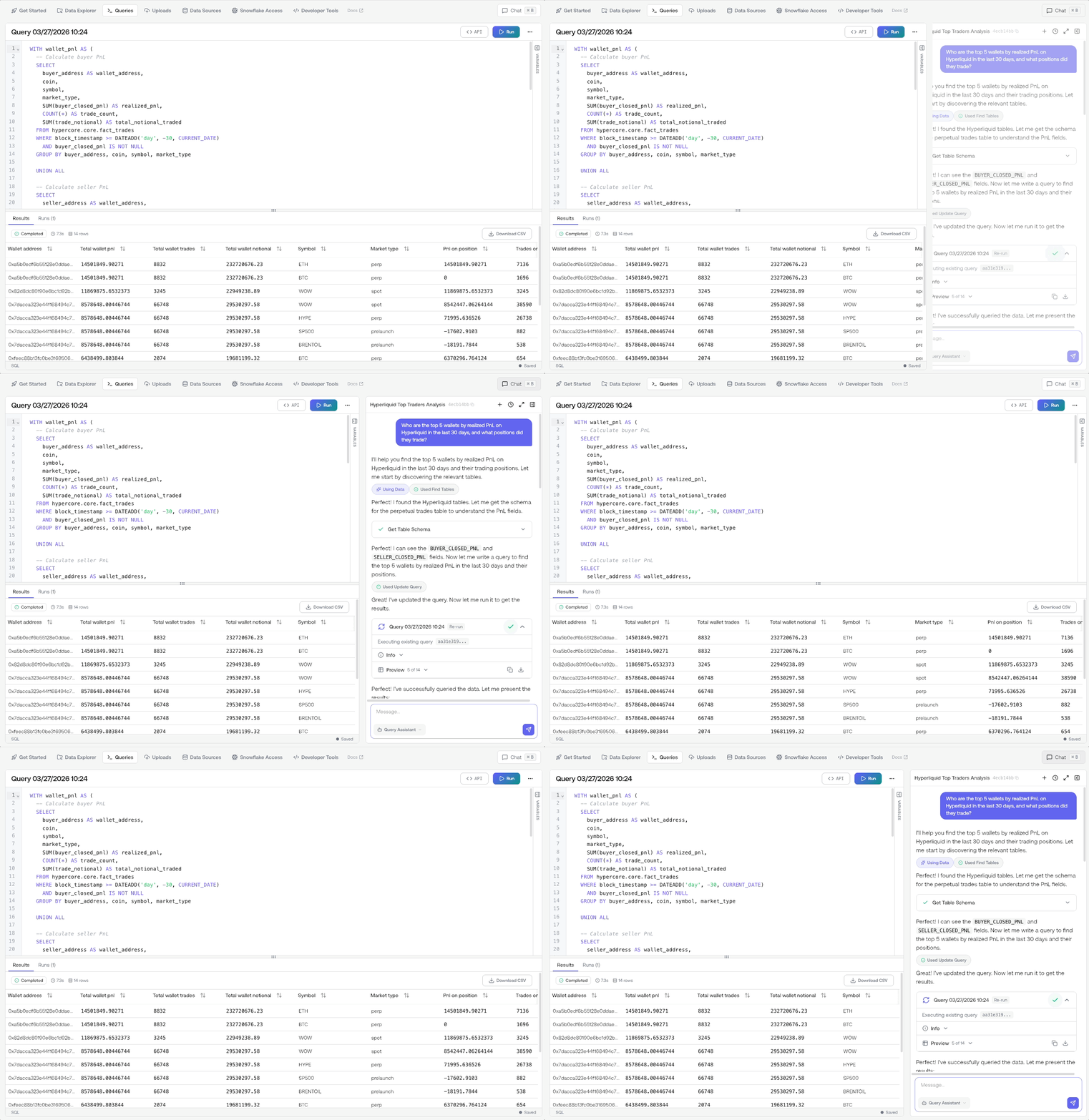
Chat History
Click the clock icon at the top of the chat window to browse your previous conversations. You can quickly pick up where you left off or revisit earlier analyses.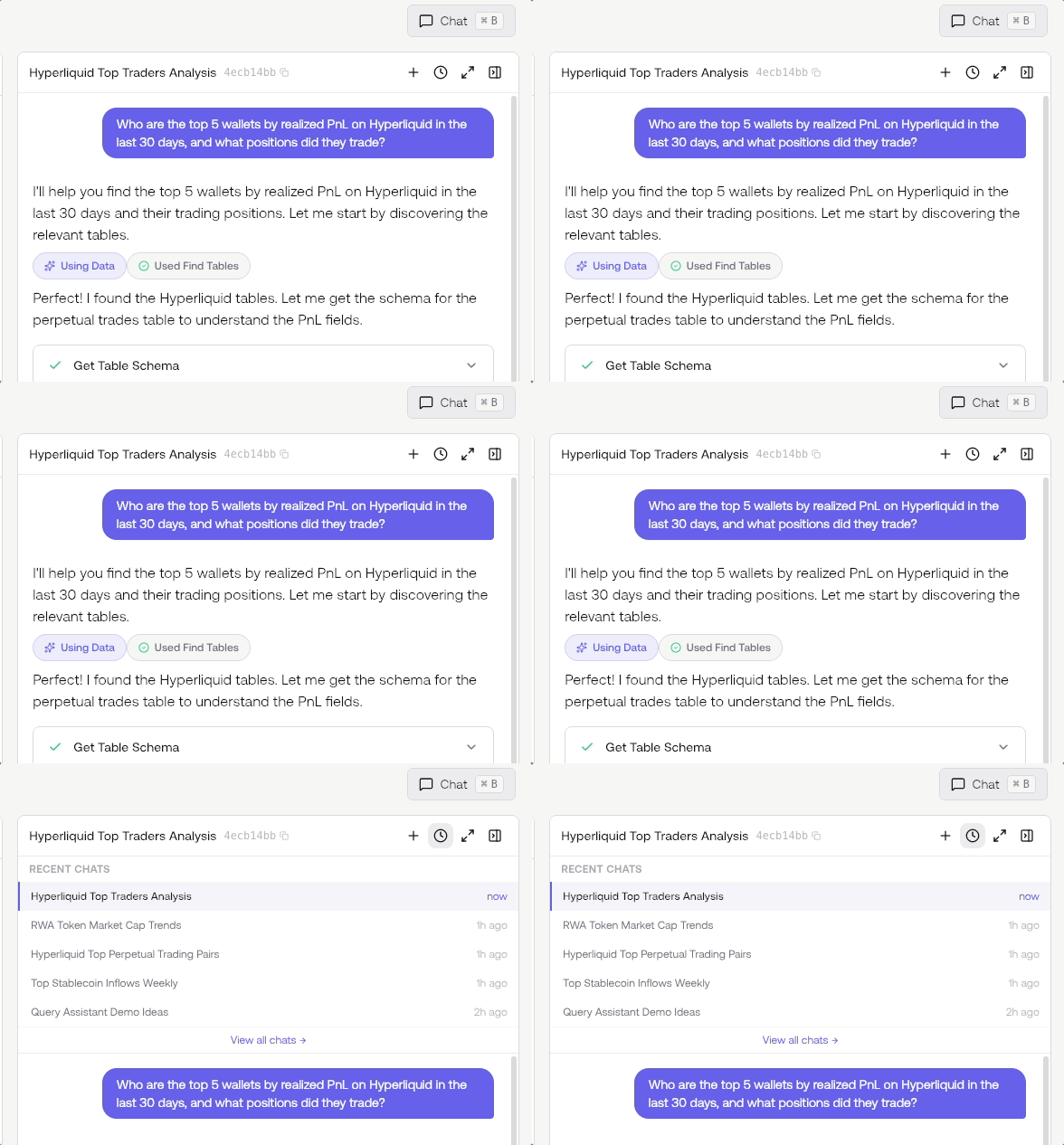
How It Works
Ask a question
Ask about any blockchain, protocol, token, or address. Include chain and contract context when
you know it.
Chat analyzes
Chat formulates a plan, writes SQL queries, runs analyses, and generates outputs (text, charts,
tables).
What You Can Do
Data & Queries
- Write SQL queries — generate, edit, and run queries against Flipside’s blockchain data
- Explore tables — discover and inspect available data tables and schemas
- Analyze data — run queries and get analysis and summaries of results
Reports & Visualizations
- Build reports — create visual dashboards and reports from query results
- Build charts — generate charts and visualizations from data
Automations & Workflows
- Build automations — create scheduled workflows with natural language
- Debug automations — troubleshoot and analyze automation runs
- Set up notifications — configure Slack, Discord, and email alerts
Intelligence & Analytics
Chat includes specialized intelligence capabilities powered by Agents:- Stablecoin intelligence — supply, flows, holders, and liquidity across EVM chains
- Solana address intelligence — user quality analysis, pockets of value, competitive comparisons
- On-chain user intelligence — cross-chain user scoring, sybil/cluster detection, wallet holdings, user journeys
- Whale monitoring — track top liquid addresses, ownership patterns, and flow-price correlations
- Protocol revenue analysis — fees and revenue breakdowns for DeFi protocols
- Market maker tracking — analyze liquidity provider movements on target chains and protocols
- DeFi competitive landscape — cross-chain competitive intel reports
Agents & Skills
- Create agents — build new AI agents with custom configurations
- Create skills — build reusable skills for agents
- Manage agents and skills — update configs and inspect existing agents
Understanding Results
Flipside Data Boxes
Every query result appears in an expandable container showing:- Query preview: What was analyzed
- Results table: Data returned
- Full SQL: Complete query for verification
- Download: Export as CSV
Select an Agent
Choose which agent you want to chat with for specialized expertise. Each agent has different skills and domain knowledge.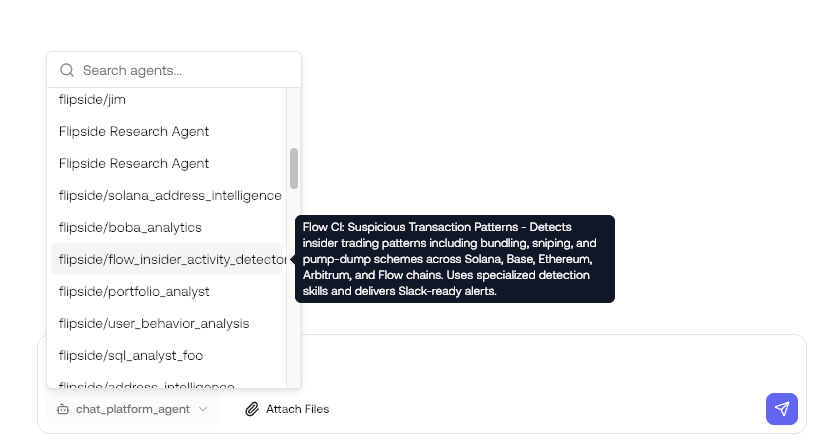
Sharing chats
Share chat sessions with colleagues to provide context or collaborate on complex queries.Shared chats are view-only. Recipients can see the full conversation history including tool calls
and data outputs, but cannot continue or fork the conversation.
Pro Tips
Be specific
Be specific
Vague questions get vague answers. Include:
- Chain names
- Time periods
- Contract addresses when known
- Specific metrics you want
Iterate
Iterate
The best insights come from follow-up questions: - “Why is this number so high?” - “Break this
down by day” - “Show me the top 10 instead of top 5”
Validate results
Validate results
Always verify important findings:
- Expand data boxes to check SQL
- Cross-reference with external sources
- Ask Chat to explain its methodology
Next Steps
Reports
Create shareable intelligence reports
Agents
Use specialized AI assistants
Automations
Apply structured methodologies
Queries
Write, run, and manage SQL queries